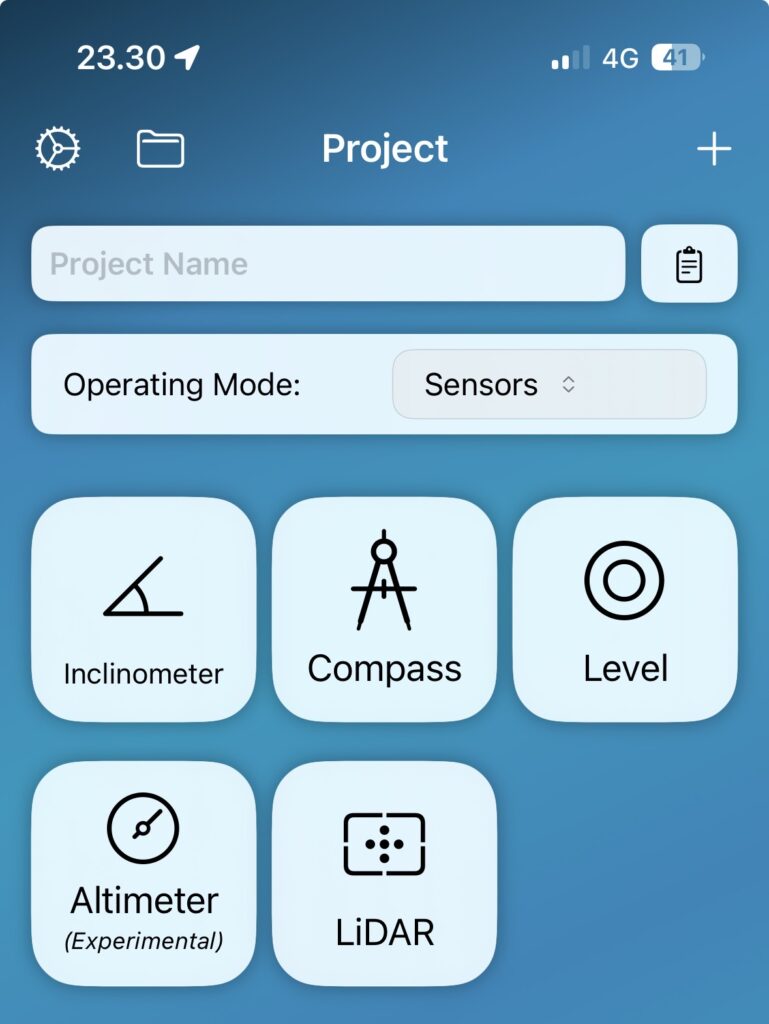
Starting with version 1.4.3, you can utilize the device’s internal sensors (iOS only) for various measurements. Free for all users regardless of license.
Choose
Inclinometer (vertical angle)
Compass (horizontal angle)
Level (bubble)
Altimeter (relative height)
LiDAR (distance)
Inclinometer
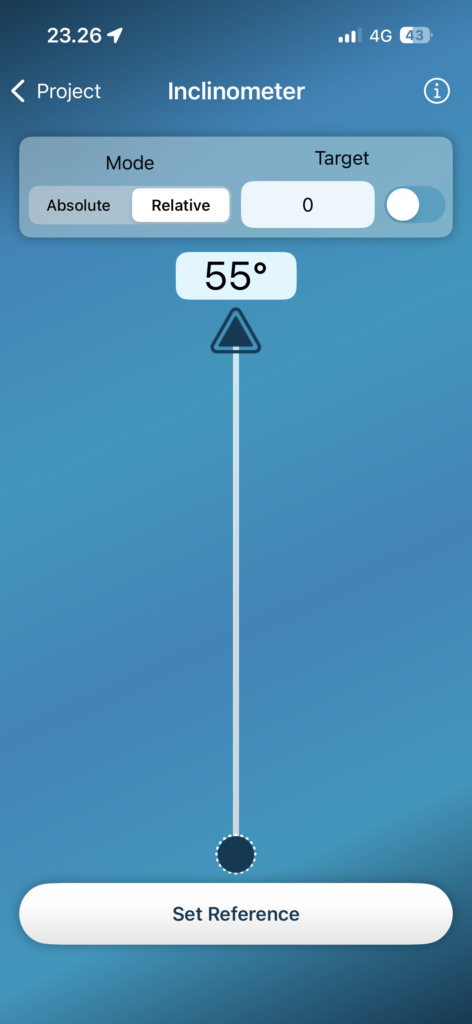
The internal inclinometer of the iOS device can be used to measure vertical angles. When measuring, try to keep the device horizontally straight without tilting for the most accurate results. The blue needle will guide you. You can also take measurements by tilting the device 90° on its side, which may make it easier to read the results on the display.
Absolute Mode
In absolute mode, the meter displays the vertical tilt angle relative to the plane of the device.
Relative Mode
In relative mode, you can set the current angle as a zero, and the device will measure the tilt angle relative to this reference.
Target Feature
The target feature allows you to set a target reading and the inclinometer will indicate when it is reached.
Compass
The compass is intended for measuring horizontal angles.
The earth’s magnetic field is pretty weak so compasses are upset by any magnetic interference. Keep the device away from any magnet, metal objects, or electrical devices.
Hold your compass flat.
The compass may not work properly inside of buildings.
Depending on your geographic location, the angle of declination may vary from other locations, as the geographic and magnetic poles are aligned.
Absolute Mode
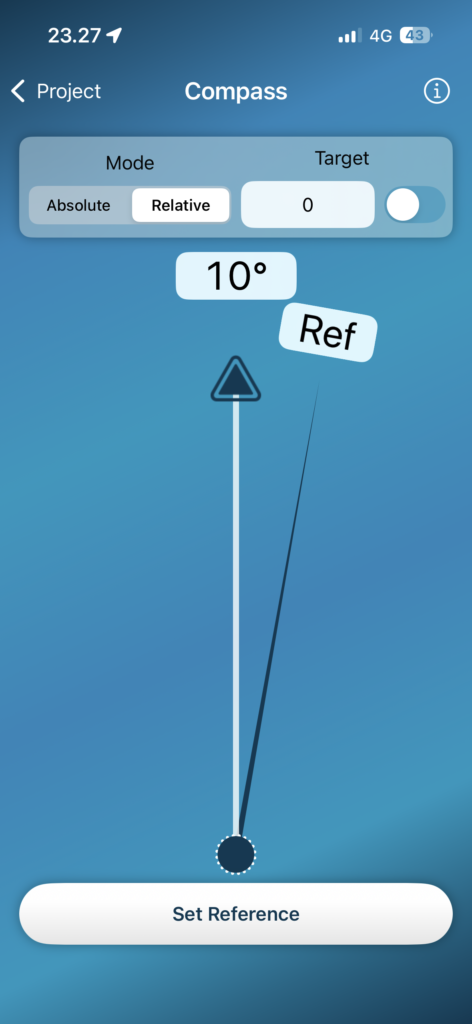
In absolute mode, the compass shows the direction and degree of the needle’s bearing relative to north.
Relative Mode
Start by setting the reference point. Point the compass arrow in the reference direction and press the \”Set Reference\” button. Once the reference is set, the compass measures the horizontal angle relative to the reference.
Target Function
The target feature allows you to set a target reading and the compass will indicate when it is reached.
Level
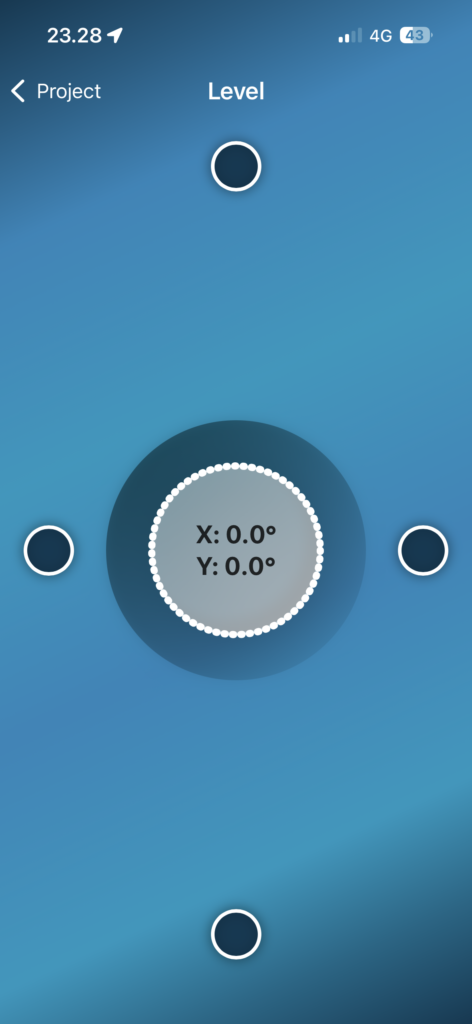
A bubble level can be used to measure slopes.
Altimeter (experimental)
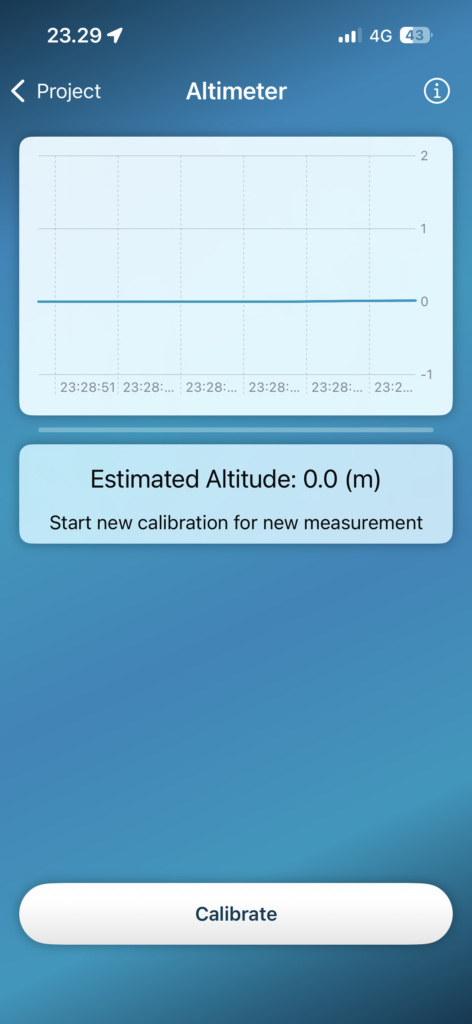
The altimeter uses the device’s internal barometer to measure atmospheric pressure, which can be used to calculate relative altitude. This is an experimental tool, so please be cautious with the results! This tool is intended for use as a rough estimate of elevation differences in outdoors, so it is not a precision tool.
Calibrate & Measure
Start by placing the device on a surface where it will not move and pressing the calibration button. The zero altitude is calibrated to this level, after which the device attempts to measure the change in altitude to this level. When the device stops, let it sit for a while to allow the results to stabilize. This process can take a few seconds.
Recalibrate
Atmospheric pressure is constantly changing, so the tool does not hold calibration for very long. This is why the measurement will go into pause mode if it is not moving for a while. During this time, the device recalibrates itself according to the changing conditions.
LiDAR
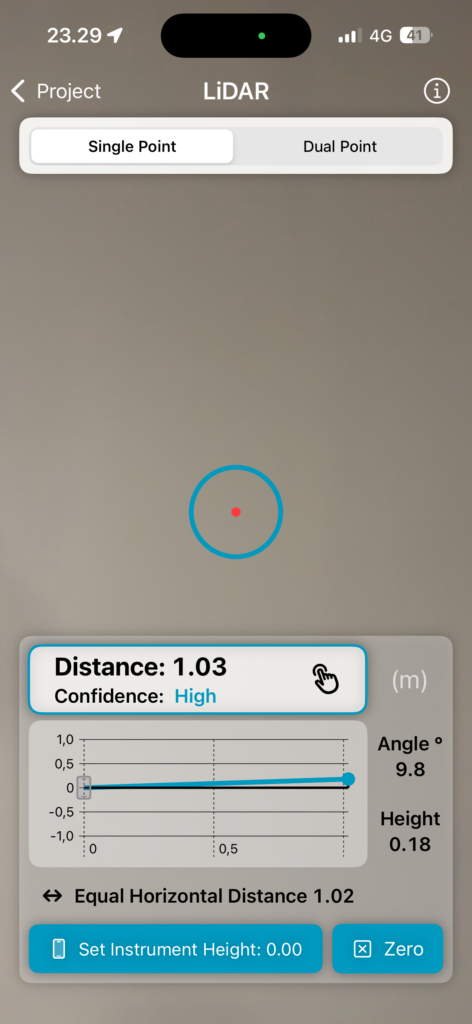
The LiDAR sensor on the back of the device measures the distance (time of flight) to a target using invisible light. This sensor is relatively accurate up to about 10 meters (30ft) depending on the conditions. Since the device knows the distance as well as its own tilt angle, all sides of the triangle being measured can be calculated from these. The measuring point is the center of the device, just like the scope on the screen.
Single Point Mode
In single point mode, the device works like a laser rangefinder, but you can’t take measurements from very far. The height is measured relative to the device by default, but if you want, you can set the instrument height by pointing the device at the floor and pressing “Set Instrument Height”, after which the height will be measured relative to the floor.
Dual Point Mode
In dual point mode you can measure dimensions between two points.
We use cookies to ensure that we give you the best experience on our website. If you continue to use this site we will assume that you are happy with it.